Knowledge Article
How can I provide sign in help for my users?
Author
Sally_Newton
SailPoint
Administrators can use an API to add a custom message to the sign on page. Use this message to provide information users might not already know about their sign in options. If an Admin configures this message for a user, the user will see the message whenever they log into Identity Security Cloud.
The format of the message can also be customized. For example, Admins can use plain text, styling like bold or italic, a list, or a link that will open in a new browser tab.
If Identity Security Cloud is experiencing a partial outage, the message that appears on the sign-in page will appear in a yellow banner above your sign-in help message.
PREREQUISITES:
- Open your preferred tool for making API calls and have admin-level authentication for making API calls.
Complete the following steps:
- Get the current brand settings using the GET List of branding items
- Use the PUT Update a branding item API endpoint to add the informational text you want. You will use the values from the GET call to fill in the other necessary fields.
Set the following form-data key-value pairs. Any pairs omitted are set to null:
name | <name from GET> |
productName | <productName from GET> |
emailFromAddress | <email address from GET> |
actionButtonColor | <hex color from GET> |
activeLinkColor | <hex color from GET> |
navigationColor | <hex color from GET> |
narrowLogoURL | <url from GET> |
standardLogoURL | <url from GET> |
loginInformationalMessage | <html message> |
NOTE: The value you supply for loginInformationalMessage has a limit of 1024 bytes.
You can use some basic HTML such as:
- Text formatting (For example: <b>Bold</b>, <i>Italic</i>, <u>Underline</u>)
- Links (For example: <a href=”https://more-info.com” target=”_blank”>Click for more info</a>)
- Lists (For example: <ul><li>This is a list item</li></ul>)
The user will see the message whenever they log in to Identity Security Cloud.
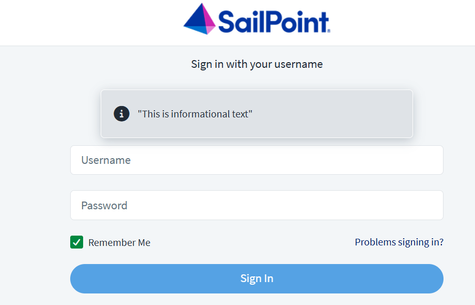
Sign In 4.png