Knowledge Article
How to run the Environment and Connectivity Information Reports
Author
Rose Cobb
SailPoint
We recommend running the Environment Information and Connectivity Information reports at least twice a year and sharing with your Customer Success Manager. This information helps our organization better support you and it also informs our development team.
Note that the screenshots in this tutorial are from IdentityIQ 8.3. If you have any questions about the content shared in this article, please reach out to your CSM.
How to run the Environment Information Report
1. Log into your production instance as the system administrator.
2. Select the Intelligence tab -> Reports.
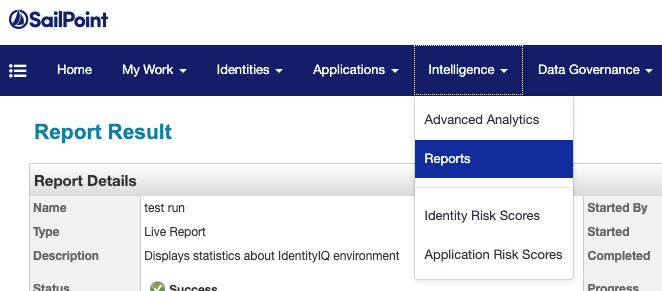
3. Select the Reports tab.
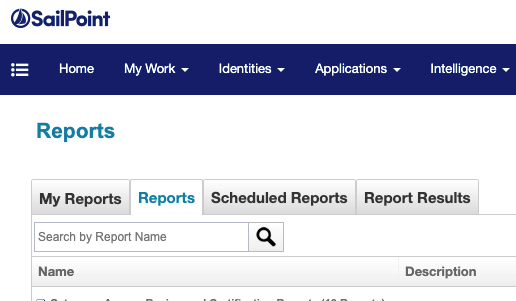
4. Search for the 'Environment Information Report' and select it.

5. Fill in the Report Properties form, under Email Attachment Format select PDF or CSV, and then Save and Execute.
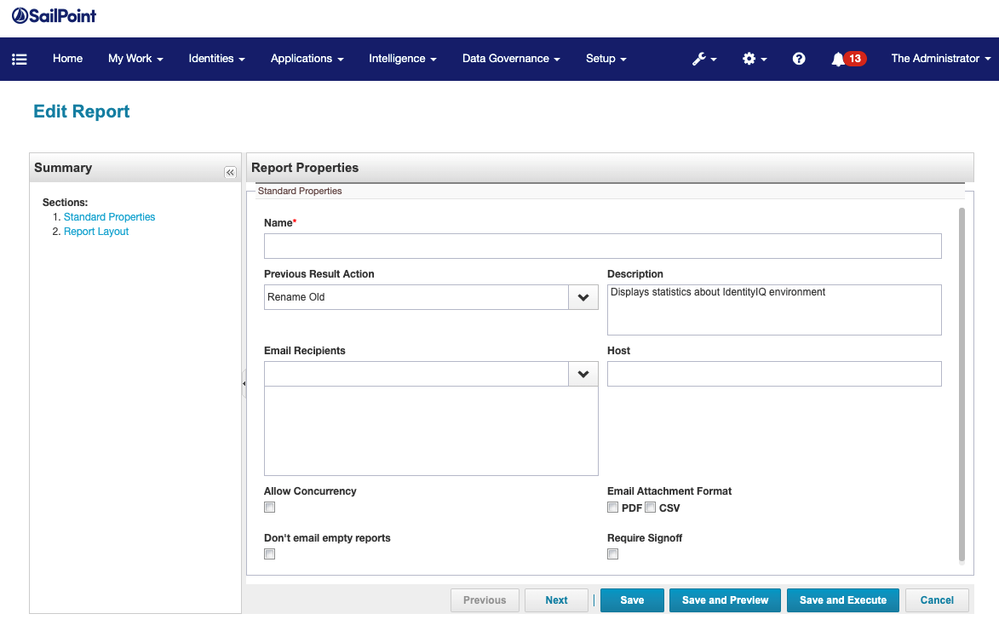
6. Download and send to your Customer Success Manager.
How to run the Connectivity Information Report
1. Log into your production instance as the system administrator.
2. Select the Intelligence tab -> Reports.
3. Select the Reports tab.
4. Search for 'Connectivity Information Report', select it and follow steps 5 through 8 to configure the report.
5. Standard Properties: Provide a name for the report.
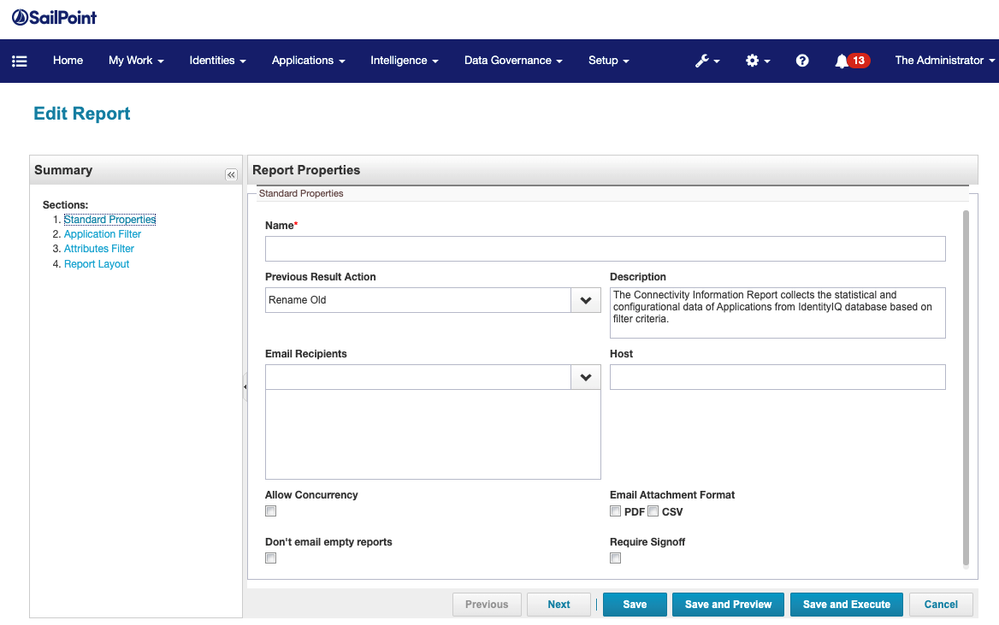
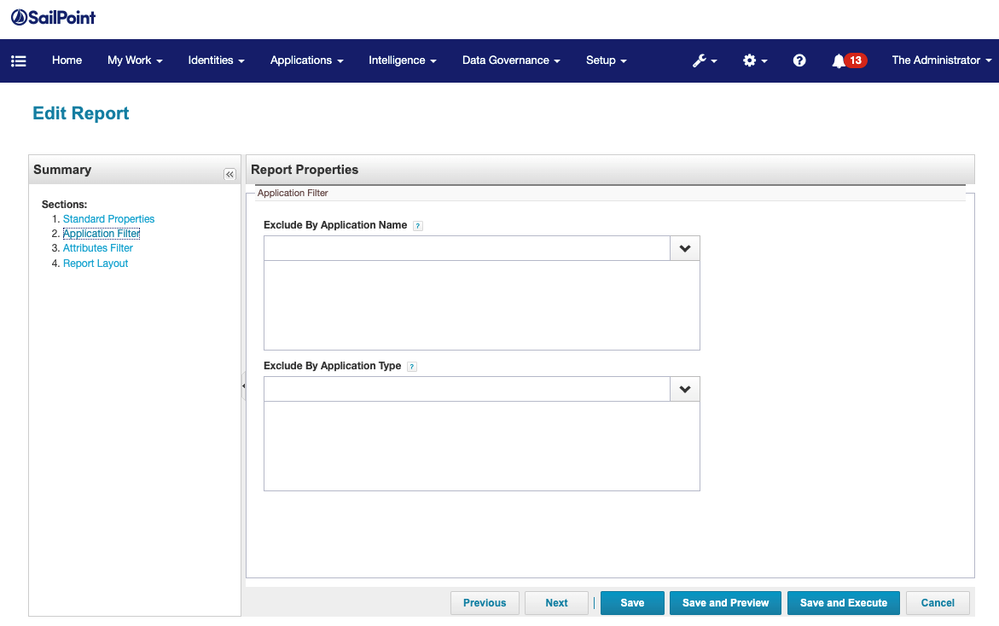
6. Application Filter: List the applications, by name or type, to exclude those during application configuration export. This is not applicable for exporting statistical information about the applications.
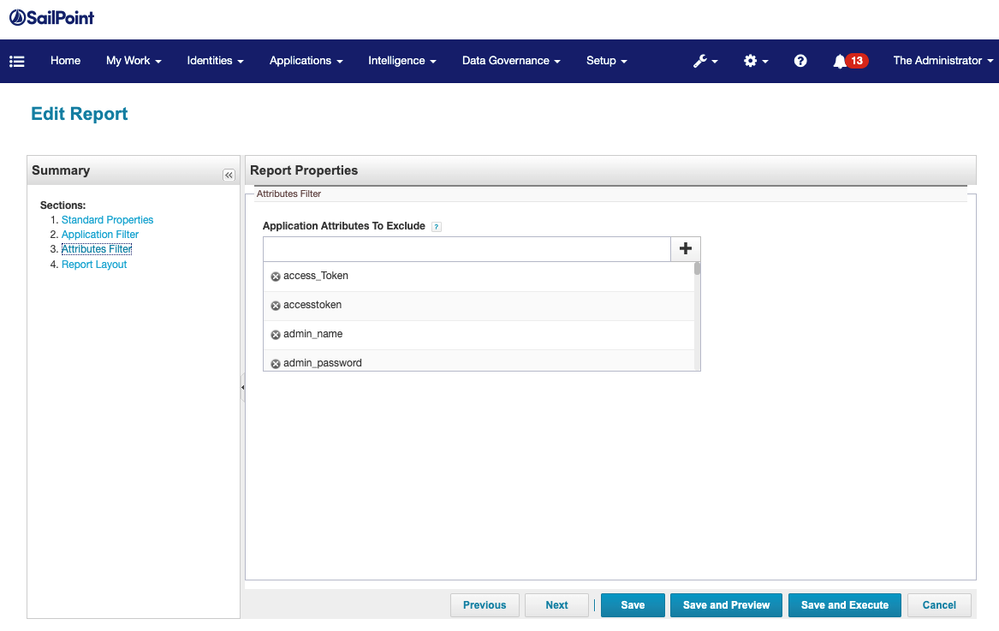
7. Attribute Filter: List of application attributes whose values are considered sensitive and not desired to be exported and shared. You can decide to add/remove any other attributes to the list. The value for excluded attributes is masked while fetching the configuration from each application.
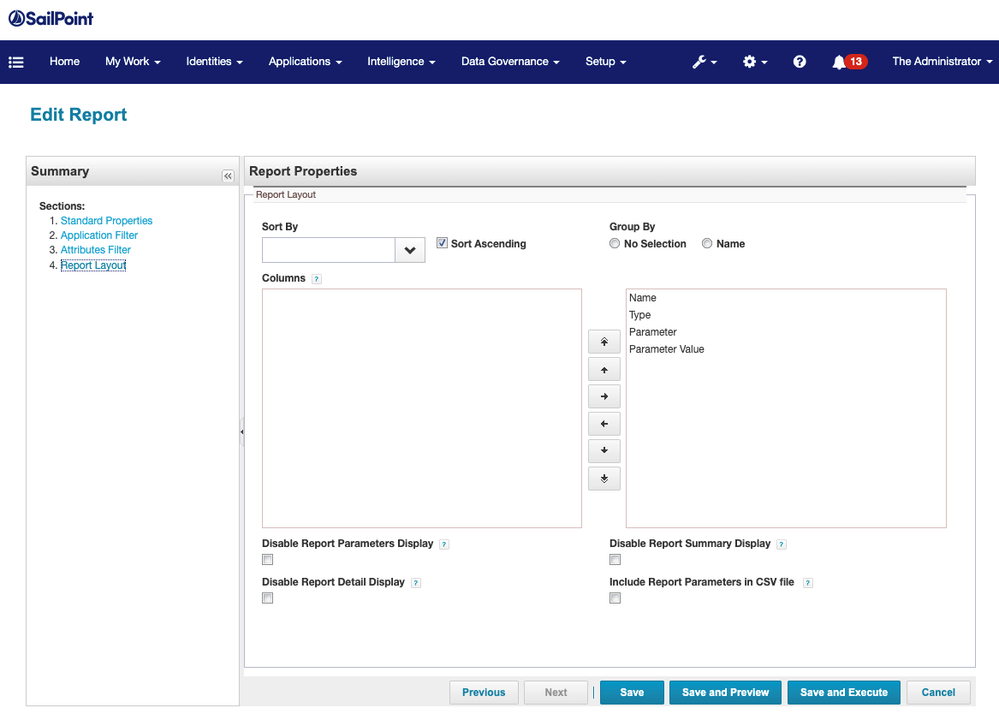
8. Report Layout: Select the “Include Report Parameter in CSV file” checkbox and then Save and Execute.
9. Download and send to your CSM.