Knowledge Article
Identity Cleanup & Management Guide - Identity Security Cloud
Author
mannyramos11
SailPoint
What You’ll Achieve
- Configure Lifecycle States and Identity States correctly
- Accurately report Active vs. Inactive identities
- Troubleshoot and reprocess identities to fix discrepancies
Key Concepts
- Identity Profile — The mapping between Identity Security Cloud and an authoritative source (e.g., HR). It controls each identity’s Lifecycle State and Identity State.
- Lifecycle State — An identity’s current status in your organization (e.g., Active, Pre‑Hire, Terminated).
- Identity State
- Active — Currently working for your organization
- Inactive (short‑term) — On leave or early separation stage
- Inactive (long‑term) — Fully separated
- Note: If Identity States are not explicitly configured, all identities default to Active, which can inflate your licensed active identity count.
Step 1 — Verify Identity State Configuration
- Sign in as an Org Admin.
- Go to Admin → Identity Management → Identity Profiles.
- Open each Identity Profile and select Lifecycle Management.
- Confirm expected Lifecycle States exist (e.g., Active, Pre‑Hire, Leave, Terminated).
- Identity State
- Operational employees/contractors → Active
- Leave of absence, pending termination → Inactive (short‑term)
- Terminated, retired, long‑term leave → Inactive (long‑term)
Align Lifecycle States with your HR system’s employment statuses for clean, automated updates.
Setting Up Lifecycle States - SailPoint Identity Services
Step 2 — Check Your Identity Counts
Use the Search page and run the following queries.
| Category | Search Query |
|---|---|
Total Active | attributes.identityState:active |
Active — Internal User | attributes.identityState:active AND sourceCount:>6 |
Active — Lite User | attributes.identityState:active AND sourceCount:<=6 |
Total Inactive | attributes.identityState:inactive_short_term OR attributes.identityState:inactive_long_term |
Save each search with clear names (e.g., “Active — Internal”) to quickly re‑run and track progress over time.
Step 3 — Cleanup at Source
Filter identities at authoritative source.
Exercise caution when making authoritative source aggregation changes. Contact your CSM to engage SailPoint Professional Services for expert guidance, assistance and implementation.
JDBC (VA-Based)
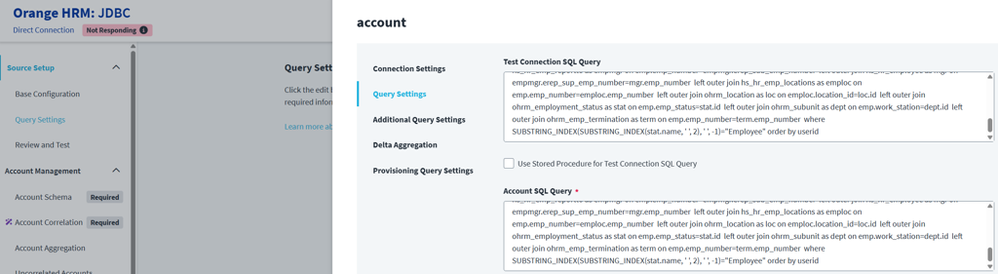
- Go to the JDBC auth source in Identity Security Cloud.
- Navigate to the Query Settings → account.
- Update the SQL query to filter out any users that are active that might not be needed to be managed.
Tip: Make sure you test the recommended steps in Sandbox and not directly in Production.
Delimited File Source
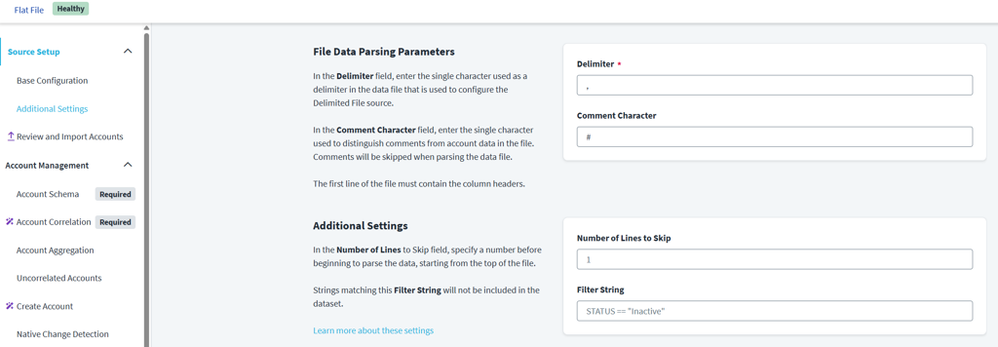
- Go to the Delimited File source in Identity Security Cloud.
- Navigate to the Additional Settings → Filter Settings.
- Add/Update string value to match filter for exclusion.
Tip: Make sure the customer tests the recommended steps in Sandbox and not directly in Production.
Workday (VA-Based)
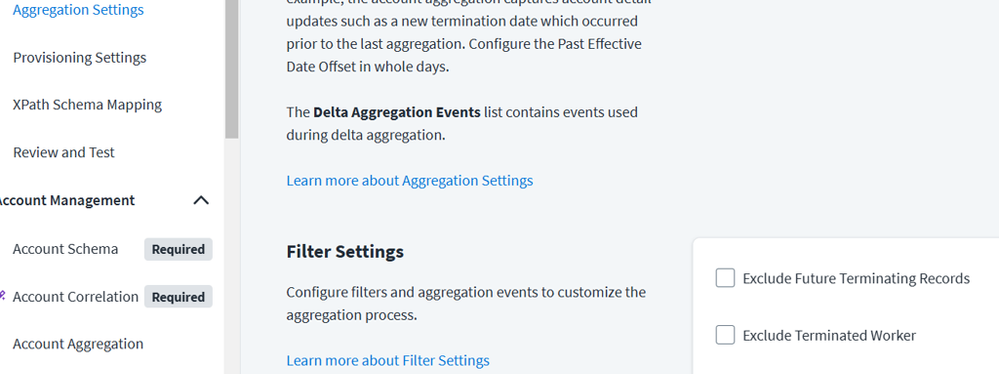
- Go to the Workday source in Identity Security Cloud.
- Navigate to the Aggregation Settings → Filter Settings.
- Next check Exclude Terminated Worker checkbox.
- If Delta Aggregations is configured then make sure to that the Exclude_Inactive_Workers is included in the list of events for delta aggregations.
Step 4 — Fix Discrepancies
If counts look wrong after configuration updates, reprocess identities, then re‑run your saved searches.
- Trigger reprocessing via API: SailPoint ISC API (V2025).
- Wait for the job to complete and confirm status.
- Re-run your saved searches to validate corrected counts.
Large reprocess jobs can be resource intensive. Run during low-usage windows and monitor job status until completion.
Troubleshooting
- All identities appear as Active: Ensure Identity States are explicitly mapped for every Lifecycle State in each Identity Profile. Without a mapping, the default is Active.
- Counts don't change after updates: Confirm the reprocessing job completed successfully. Then verify you updated the correct Identity Profile and Lifecycle State mappings.
- Unexpected spike in active users: Check recent HR feed changes or onboarding bursts. Validate that Leave/Termination events are mapped to Inactive states and are being ingested.
Best Practices
- Keep states in sync: Regularly audit mappings between HR statuses and Identity/Lifecycle States.
- Automate transitions: Use business rules to automatically set states on hire, leave, and termination events.
- Review quarterly: Add a recurring review every quarter to validate counts against your license.
- Use naming standards: Standardize Lifecycle State names across Identity Profiles to reduce errors.
Quick Checklist
Confirm Lifecycle States exist for all Identity Profiles
Map each Lifecycle State to the correct Identity State
Run and save the identity count searches
Cleanup identities at authoritative source
Reprocess identities if counts are incorrect
Schedule a quarterly review
Related Resources
- SailPoint Customer Agreements Definitions and Additional Terms
- Setting Up Lifecycle States
- Identity States Overview
Outcome: With properly configured Identity and Lifecycle States, your license reporting reflects reality, audits are smoother, and cleanup is predictable.