Knowledge Article
SailPoint Certified Digital Badging Guide
Author
arthur_altman
SailPoint
- Introduction
- How to retrieve your digital badge
- How to accept your badge
- How to share your badge on social media
- Recertification and expiring badges
- Credly FAQs
- Important information about Badgr (Canvas)
Introduction
As of February 2026, the SailPoint Certified Identity Professional Program is partnering with Credly to issue credentials as Digital Badges. Digital Badges provide significant advantages over traditional PDF certificates for both badge earners and issuing organizations.
Our digital credentials allow you to showcase your verified skills and achievements in a modern, trusted format. Badges can be easily shared on professional platforms such as LinkedIn to strengthen your professional profile and highlight your accomplishments.
Each Digital Badge is instantly verifiable with a single click, ensuring transparency and credibility. If a credential expires, the badge will automatically reflect its current status.
How to retrieve your digital badge
Learn how to retrieve your new badge by creating your Credly account or logging in for existing Credly account holders. Test takers will receive an email within 2 – 3 business days after receiving the email from Identity University stating that they have passed an exam, the email will come from admin@credly.com (make sure to add this email to your list of trusted sources). If you do not see this email delivered within that timeframe, please contact training-help@sailpoint.com.
For more details on retrieving your badge, check out this article from Credly.
1. Upon passing your certification or knowledge credential, you will receive an email from admin@credly.com that looks similar to the image below.
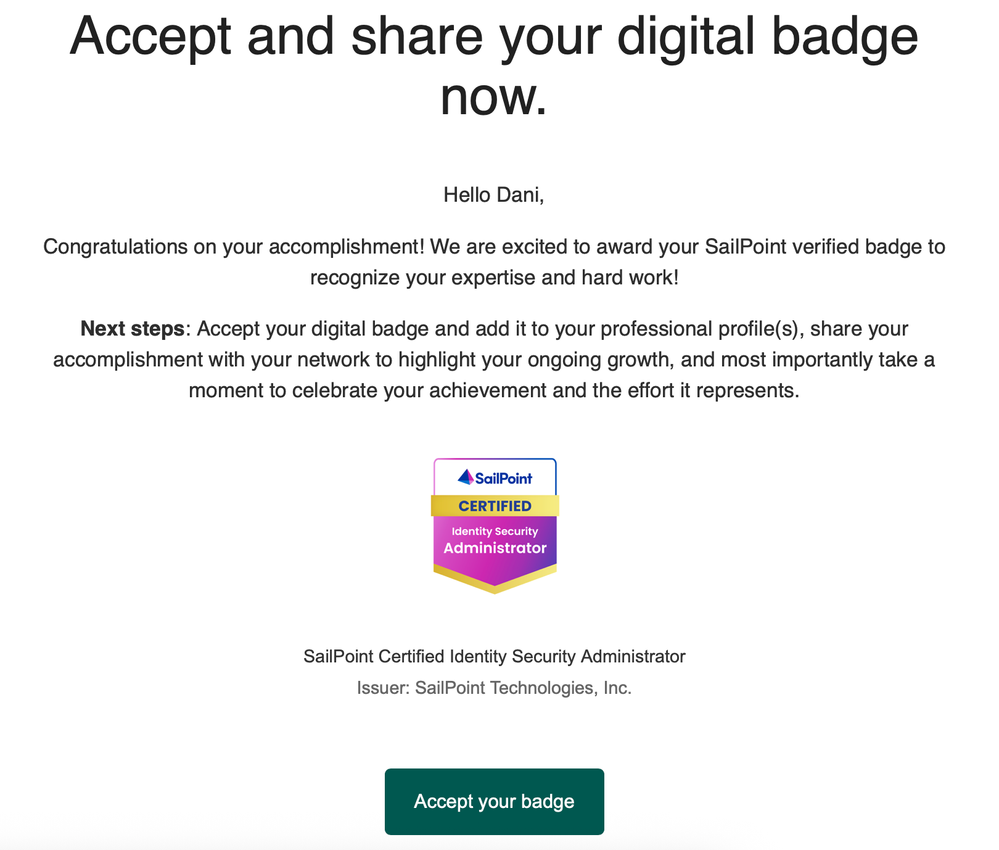
2. If you are new to Credly, you’ll be asked to create an account and confirm your email. If you are familiar with Credly and already have an account, just log in!
3. After you create your new account or log in to your existing account, just log in and accept your badge!
How to accept your badge
Learn how to accept your credly badge and make sure it is visible on your Credly account and how you can auto accept all future badges. For more details on accepting your digital badge, check out this article on Credly.
- Upon receiving the digital badge notification email from admin@credly.com, simply scroll to the bottom and select “Accept your badge”. Once you select this you will be taken to Credly to log in or create your account and your badge will appear in your Credly profile.
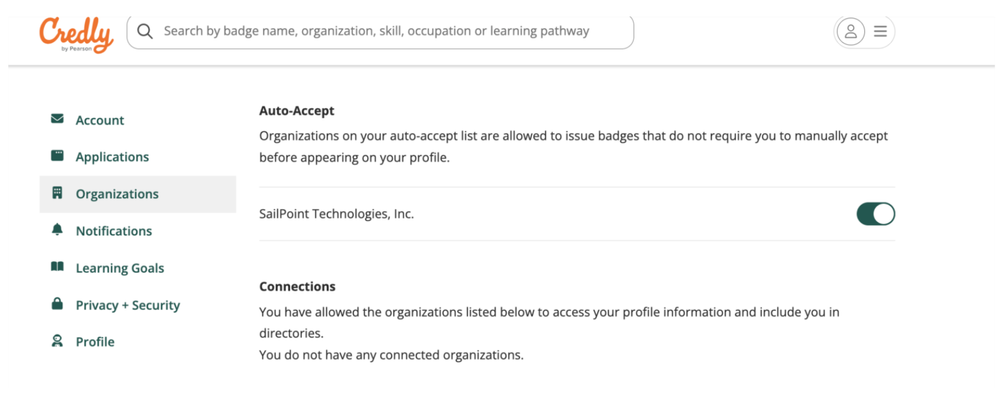
- To auto accept your badge, follow these steps:
- Go to your profile icon at the top right-hand corner of the page, select “View Profile”
- Select “Settings”
- Select “Organizations” from the left-hand menu
- Here you will be able to enable or disable auto accepting badges from any organization that has already issued you a badge.
How to share your badge on social media
Learn how to share your badge on social media such as LinkedIn, Facebook, X, and more! For more details on how to share your badge, check out this article on Credly.
To share your badge:
- Log into your account on www.credly.com
- Select the badge you'd like to share
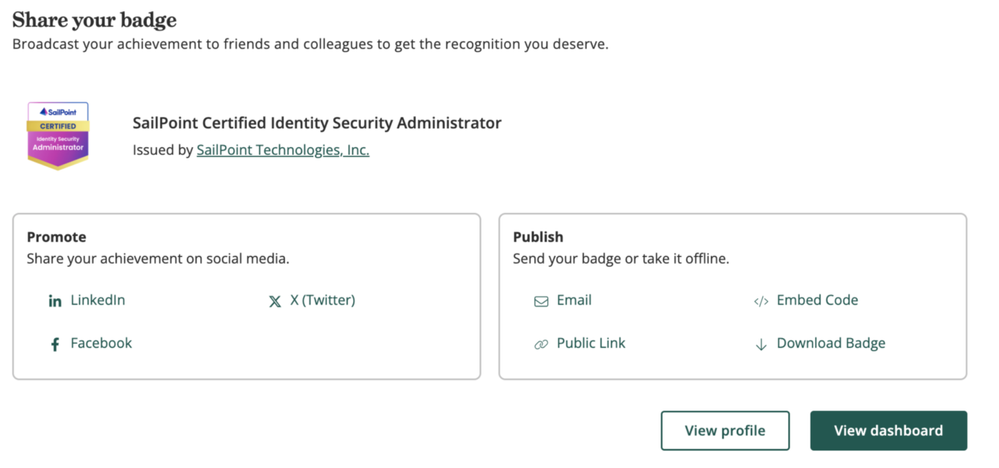
- At the top of the page, select the Green "Share" button
- You will be brought to the “Share Badge” screen where you can find different tabs directing you to connect your social media accounts and share your badge
Want to learn how to connect your badge to your LinkedIn profile and share it with your feed? Make sure to check out this detailed article from Credly.
Recertification and expiring badges
If you’ve successfully recertified an existing digital badge, either by retaking the exam or by completing all requirements of the SailPoint Recertification Program, your badge expiration date will be extended within 2-3 business days.
Note: No new badge will be issued. You can continue to access and share your existing badge as usual through Credly at https://www.credly.com.
Credly FAQs
Have more questions, make sure to check out the FAQs from Credly!
Important information about Badgr (Canvas)
(SailPoint’s previous badging platform)
As we migrate from Badgr (Canvas) to Credly, please note that you will not lose access to your existing Badgr badges or account. You will continue to be able to view and access all badges you’ve earned in Badgr, provided you retain your account and login information. You can access your Badgr account directly by logging in here.