Knowledge Article
Identity University Training Administrators Guide
What is a Training Administrator?
Training Administrators are designated individuals with elevated access within Identity University, enabling them to manage training resources and learner access within Identity University. Training Administrators can assign and re-assign training subscription licenses as well as review which Training Units have been utilized across the team.
Important: As a Training Administrator, you will have access to the Training Unit dashboard. Organizations that have purchased Training Units will see Training Unit codes listed. To organizations that have not purchased Training Units, the dashboard will appear blank — however, you can purchase training units at any time for members of your team to use towards Instructor-Led Training, Certification Exams, as well as Hands-on Lab courses.
Designate yourself as a Training Administrator: contact our support team to opt-in.
- What is a Training Administrator?
- Getting started as a Training Administrator
- Training subscription licenses
- Step 1: Select Manage Students after clicking on your profile icon to be directed to the Student Management page
- Step 2: Manage subscription licenses across students
- Step 3: Click the Enroll Students button to assign a subscription license
- Step 4: Re-assign a subscription license, by first marking a current student inactive
- Training units
- Frequently Asked Questions
- Why do I not see any users under the Students tab?
- Why am I unable to assign users to my organization’s subscription?
- My colleague created an Identity University training profile, but I am not seeing their name under ‘students’ to assign them a subscription license.
- If I re-assign a subscription license, does that student lose course progress?
- How can I view the learning progress of all team members?
- A user is no longer with the organization. How can I request them to be offboarded from Identity University?
- How do I renew my organization’s training subscription?
- How do I know if I am a Training Administrator?
- Can our organization have more than one Training Administrator?
- I see a Hidden Student in my Student list; what does this mean?
- Training subscription licenses
Getting started as a Training Administrator
Learn how to manage your team's training subscription licenses and training units by following the steps below.
Need a hand? Check out our step-by-step video walkthrough designed for Training Administrators.
Training subscription licenses
As a Training Admin, you can assign training subscriptions to any individual within your organization; providing them access to all on-demand training content available withinIdentity University.
To assign a subscription to a user's profile, that user must have an Identity University profile. If an individual you want to assign a training subscription does not have an active Identity University training profile, have them create an Identity University profile by signing in with their corporate email. (Not seeing an individual on your list of 'students'? See the FAQ section for guidance).
Step 1: Select Manage Students after clicking on your profile icon to be directed to the Student
Management page
After signing into Identity University, navigate to your profile icon and click on Manage Students.
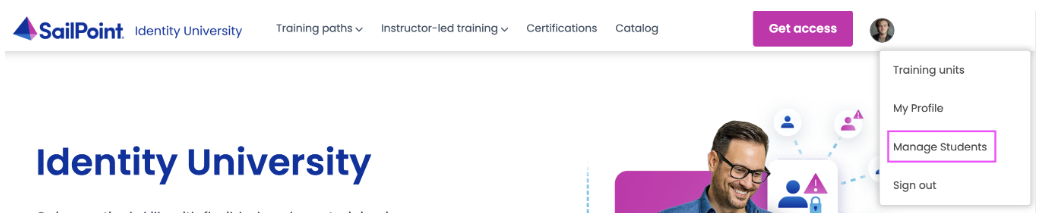
The Students tab shows you all individuals within your organization with an Identity University training profile. From here you can check the learning progress for each student; select an individual's name to view the courses and exams they are currently enrolled in and those they have completed.
The License Package tab will show your active subscription(s) (note: subscriptions purchased via a credit card will not show on this page)
Step 2: Manage subscription licenses across students
From the License Package tab on the Manage Students page, select an active license package to review the details of this subscription, including currently assigned subscription licenses.
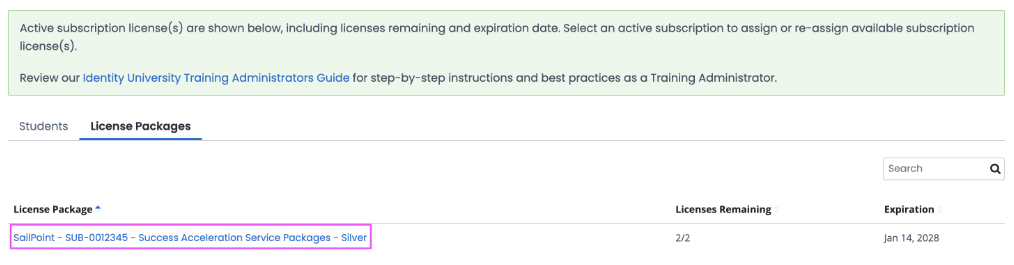
The subscription page is the main place for assigning and re-assigning training subscription licenses. On the subscription page, you can review which individuals are currently assigned a subscription license and how many licenses you have remaining to assign.
Individuals with an 'active' status are currently assigned to a subscription license and have access to all on-demand training courses available within Identity University. Individuals with an 'inactive' status are individuals who may have been assigned a subscription license in the past but no longer have access to on-demand training courses.
Step 3: Click the Enroll Students button to assign a subscription license
To assign the subscription, click the Enroll Students button located at the top right of the page. Select the student you want to assign to the subscription and click Enroll Students to save selection.
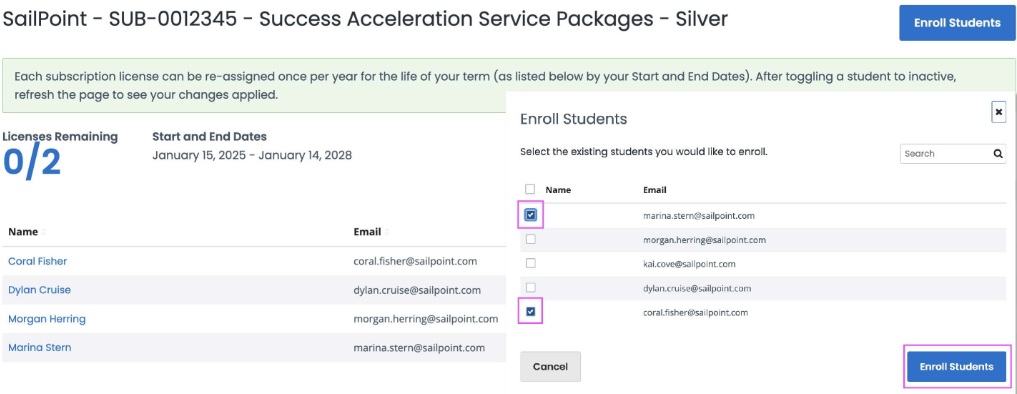
Note: Only students with active Identity University profile will be shown on the list.
Step 4: Re-assign a subscription license, by first marking a current student inactive
To re-assign a subscription license, toggle the status of a current student from active to inactive. Refresh the page to view the updated number of licenses remaining. Then, repeat Step 3 from above to assign a subscription license.
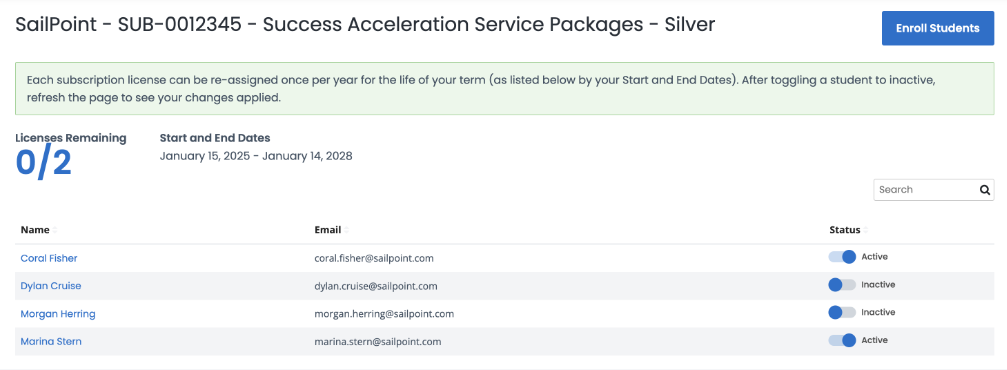
Note: Each subscription license can be re-assigned once per year for the life of your subscription term (as listed by your Start and End Dates).
For example, if your Identity University subscription starts on January 15th, 2025 and ends on January 14th, 2028 and includes 2 licenses, you can re-assign each license once per year during the life of your subscription term. This means up to 4 students can be assigned a subscription license each year. Within a three-year term, this means up to 12 students can be assigned a subscription license and gain access to all on-demand courses within Identity University between January 15th, 2025 and January 14th, 2028 (subscription term Start and End Dates).
Training units
As a Training Administrator, you have the ability to see the Training Units that your organization has purchased. Training Units purchased are assigned to organization-specific codes, which individuals within your organization can redeem towards training courses within Identity University. Follow the steps below to review Training Units your organization has purchased as well as view your organization-specific codes so that you can share these out to members of your team.
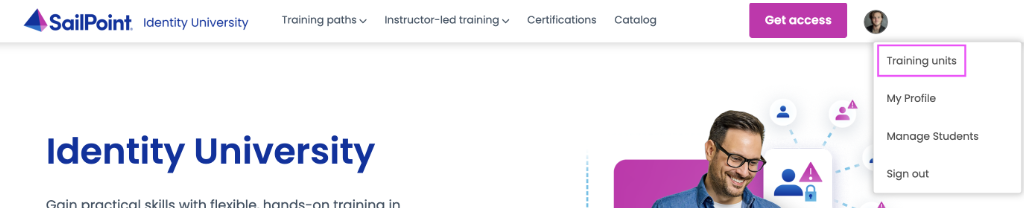
Step 1: Select Training Units after clicking on your profile icon to view your Training Credit Report
After signing in toIdentity University, navigate to your profile icon and click on Training Units.
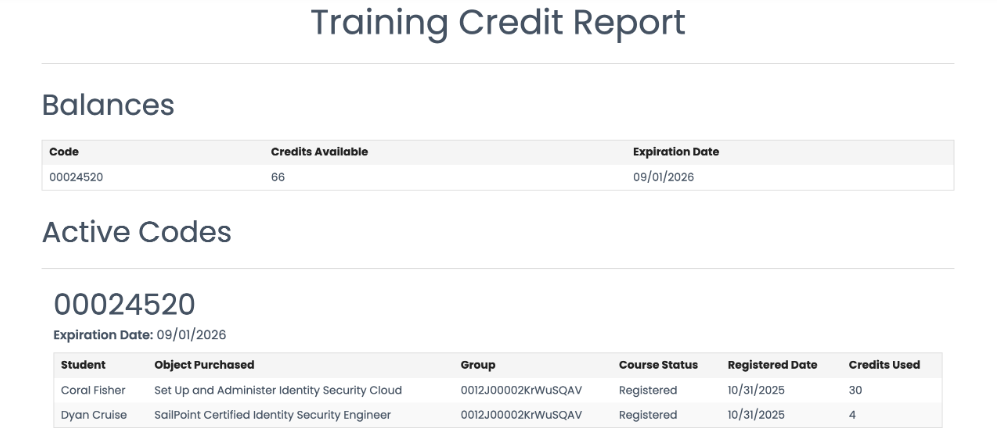
Your Training Credit Report has two main sections: Balances, which displays all training units available to your organization and Codes, which displays all training unit codes available for individuals within your organization to redeem towards training courses within Identity University.
Step 2: Share the training unit code(s) with members of your team
Training admins are the only ones in the organization that have visibility into the Training Units an organization has purchased as well as organization-specific codes. We encourage connecting with your team on the training courses each member plans to participate in, prior to their enrollment.
Training Admins are responsible for sharing these Training Unit Codes with your team. Simply copy & paste the Training Unit Code and share via email, slack, teams, or other corporate productivity tools for them to use when registering for Instructor-Led Training, Certification Exams, or Hands-on Lab courses.
Step 3: Review Training Unit Code transactions and active enrollment
You can review activity and usage of your organization's Training Unit Code(s) at any time, straight from your Training Credit Report. From here you can review which members of your team have used the training unit(s), how many training units were used, and for which courses.
Frequently Asked Questions
Why do I not see any users under the Students tab?
Only students with an active Identity University profile will show up under the Students tab. If a team member is not showing up, that team member will need to sign in to Identity University with their corporate email to create a training profile. Once the team member has an active Identity University profile, then you as a dedicated Training Administrator will be able to see that user under the Students tab.
Why am I unable to assign users to my organization’s subscription?
As a dedicated Training Administrator, you can only assign users to your organization's subscription who have an active Identity University profile. Remind that team member to sign in to Identity University with their corporate email to create a training profile. Then, you will see that user in the list of students available to assign to a training subscription.
My colleague created an Identity University training profile, but I am not seeing their name under ‘students’ to assign them a subscription license.
Please note that if individuals across your organization have emails with different domains, each domain must be added as an approved domain. Please reach out to your CSM to ensure that this email domain is added to the approved domain list. After this, you will see that individual's name under 'students.’
If I re-assign a subscription license, does that student lose course progress?
No, upon re-assigning a subscription license, that student will not lose any course progress that has been completed up to that point. Their course progress will simply pause and will resume if and when they get re-assigned a subscription license.
As a best practice, we recommend that students complete all on-demand training courses and knowledge credentials prior to re-assigning their subscription license.
How can I view the learning progress of all team members?
After signing in to Identity University, click on Manage Students from your profile dropdown. This will take you to the Students tab, where you can see every team member who has created an Identity University training profile. From here, you can quickly check on a learner's progress by clicking on their name. This allows you to view the courses and exams that a student has enrolled in, which of those courses they have completed, as well as SailPoint certifications they have received.
A user is no longer with the organization. How can I request them to be offboarded from Identity University?
Please submit a support ticket to our Login Help Team by emailing login-help@sailpoint.com.
How do I renew my organization’s training subscription?
We recommend you speak with your CSM about the best options available for allowing team members within your organization to continue their learning journey to stay up to date with the latest SailPoint technology. Users do not have access to in-progress training after the contract end date, and we want to ensure your users don't lose access.
How do I know if I am a Training Administrator?
Training Administrators have additional capabilities within their Identity University profiles, giving them access to manage subscription license assignments across their team as well as visibility into the Training Units an organization has purchased.
To easily tell if you are a Training Administrator for your organization, click on your profile icon and see if you have access to Manage Students and Training Units (shown in the screenshot below).

If you do not see these additional tabs, but you want to be your organization’s dedicated Training Administrator, contact our support team to opt-in.
Can our organization have more than one Training Administrator?
Yes, your organization can have more than one Training Administrator. Each Training Administrator must create their own Identity University profile and have the same access: managing subscription licenses and Training Units. For larger organizations, we recommend at least one Training Administrator focused on one managing Subscription Licenses, and an additional Training Administrator focused on managing Training Units.
I see a Hidden Student in my Student list; what does this mean?
User(s) listed as Hidden Student - Managed by another student manager means that the user's profile(s) needs to be updated.
Please reach out totraining-help@sailpoint.comso our team can assist in updating the user profile(s) so that you can see the student’s name under your Student list.