Knowledge Article
Getting started with GenAI Descriptions for Entitlements
Author
ryan_cutter
SailPoint
GenAI Descriptions for Entitlements
Did you know that the majority of entitlements within organizations today have no clear descriptions?
It’s no wonder that business users struggle with granting or certifying access when faced with cryptically named entitlements!
This is why we’re thrilled to introduce an industry-first LLM powered solution to address this common challenge.
Meet GenAI Descriptions for Entitlements!
Accessing GenAI Descriptions for Entitlements
Navigating to entitlements: Within Identity Security Cloud navigate to the entitlements page by selecting Admin > Access > Entitlements. This area lets you manage all aspects of entitlement descriptions.
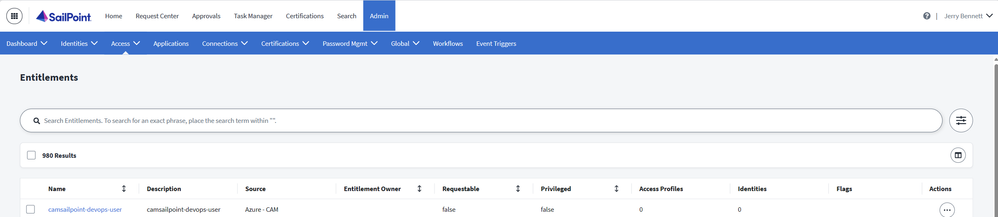
Generating descriptions
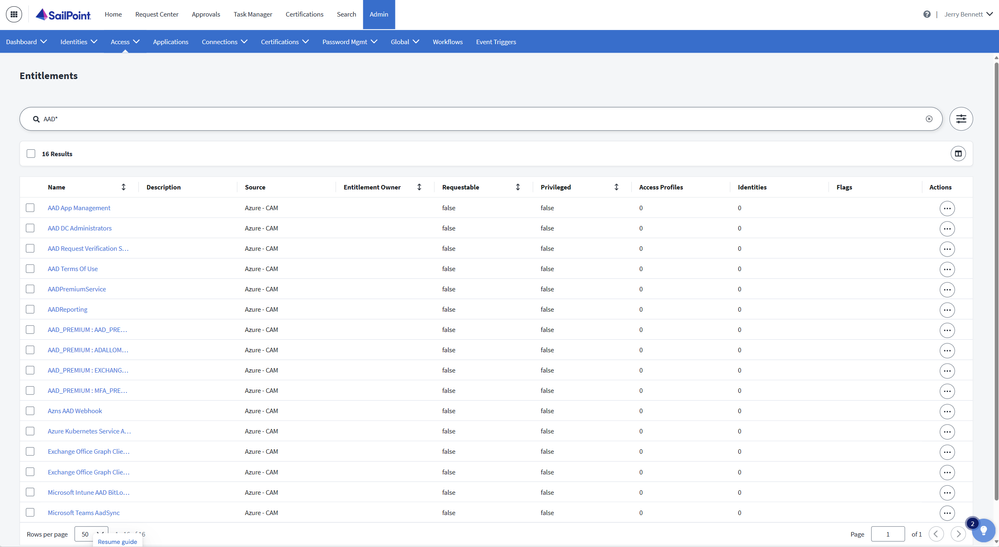
Searching for entitlements: Use the built-in search function to quickly find specific entitlements. For instance, entering "AAD*" will filter the list to show only entitlements related to Azure Active Directory.
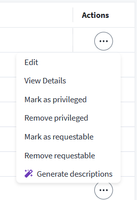
Selecting entitlements for description generation
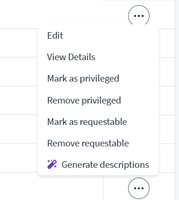
Single entitlement: If you need a description for just one entitlement, click on the actions icon next to the entitlement name and select 'Generate Description'.
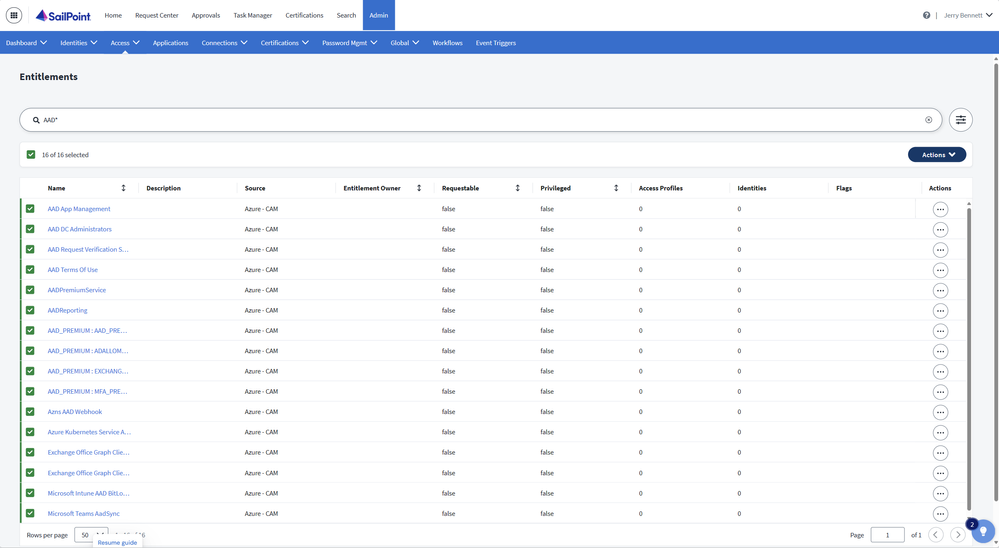
Multiple entitlements: To generate descriptions for multiple items, check the boxes next to each desired entitlement or use the checkbox at the top to select all filtered results. Then, click on the 'Actions' button and choose 'Generate Descriptions' from the context menu.
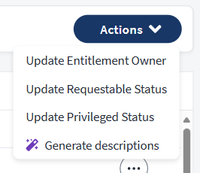
Monitoring progress: After initiating the description generation, a progress overlay will appear. This screen displays the status of the AI's analysis, which is powered by Amazon's Bedrock generative AI service. It processes the names of the entitlements and generates descriptions accordingly, ensuring that no sensitive information is required or included.
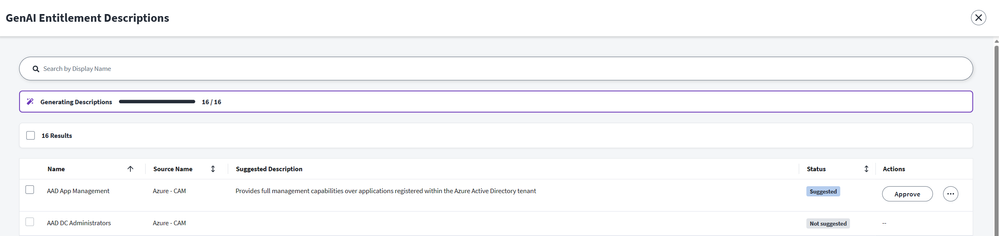
Reviewing and approving descriptions
Immediate review and approval: Once the AI has proposed descriptions, they can be reviewed directly on the progress screen. If a description meets your standards, you can approve it immediately, which updates the entitlement catalog.
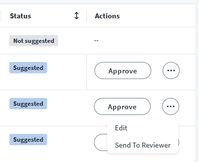
Editing descriptions: If a description requires modifications, select 'Edit' to make adjustments. You can refine the wording or add additional details as needed before final approval.
Further review: For additional oversight, you can send any proposed description to another reviewer, such as the application owner or entitlement owner. This is done through the 'Actions' menu where you select 'Send for Review' and designate the reviewer.
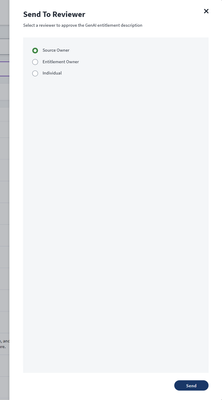
Finalizing and tracking changes
Approving as a source owner: The source owner can review entitlement descriptions here, in the Entitlement Descriptions section of their Approvals page. They will also have options to Approve, Deny, or Edit the proposed entitlement description. If approved, the description will be used in the entitlement catalog. If denied, it is simply discarded.
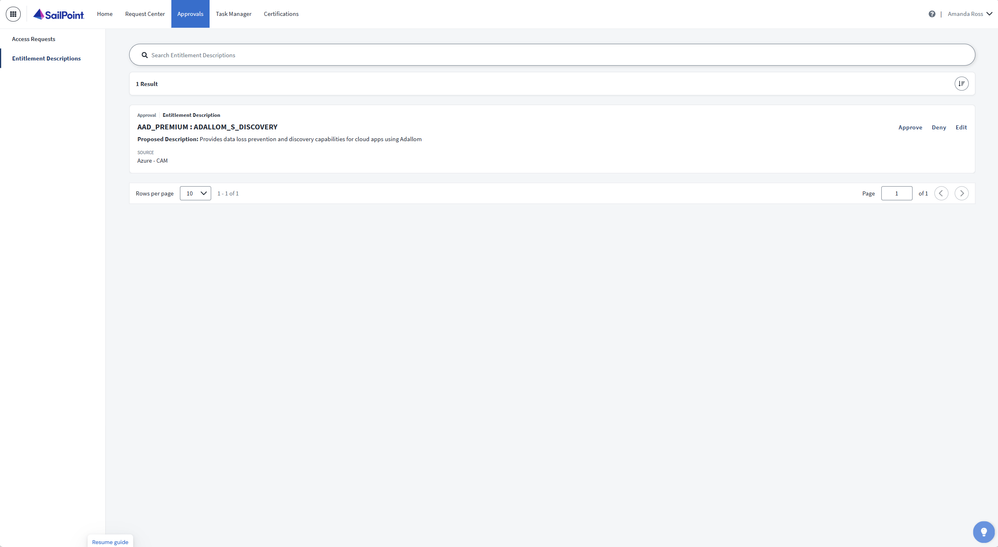
Committing approved descriptions: When a description is approved—whether by the initial reviewer or a subsequent one—it is immediately committed to the entitlement catalog as the official description. This update is automated and ensures that the catalog reflects the most current and accurate information.
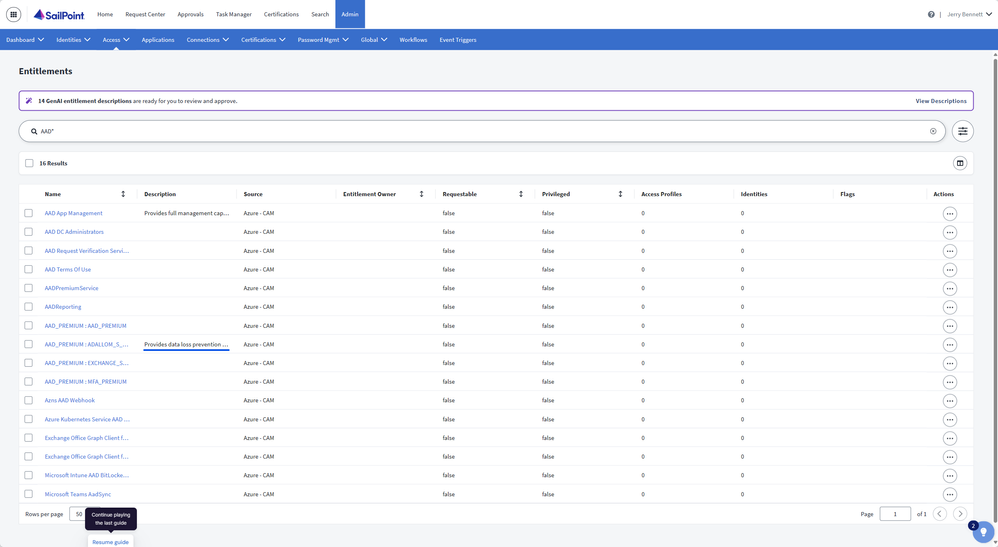
Viewing and tracking approval details
Accessing details: To view the details of an approved description, navigate back to the 'Entitlements' section, find the relevant entitlement, and select ‘Generate descriptions’ from the 'Actions' menu.
The status for this description now shows as ‘Approved’.
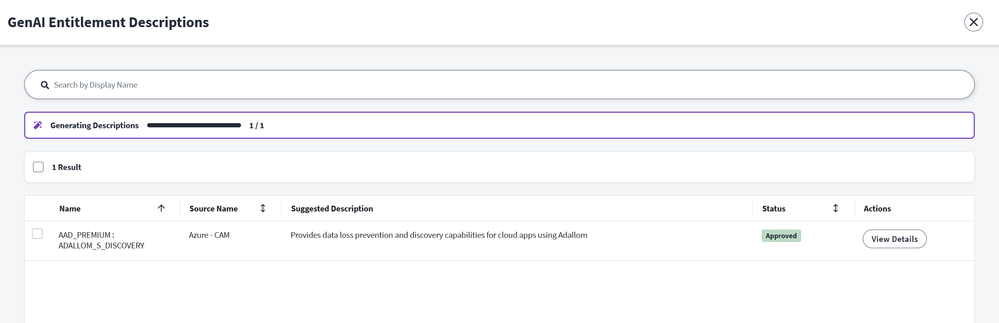
Clicking on ‘View Details’ will allow you to review the tracking information associated with the approved description.
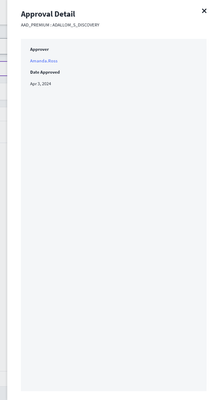
Tracking information: The details screen provides comprehensive information about the approval process, including the name of the person who approved the description and the date of approval. This feature is essential for audit trails and ensuring compliance with internal policies and external regulations.
In a nutshell

We hope you're as excited as we are to get started with GenAI Descriptions for Entitlements!
The introduction of GenAI Descriptions for Entitlements in SailPoint Identity Security Cloud epitomizes our pledge to facilitate identity security through natural language, making your governance model as intuitive as having a conversation. It ensures that the management of security access controls is both user-friendly and compliant with stringent regulations, allowing organizations to streamline their processes and maintain robust security protocols effortlessly.
FAQs
What business problem is GenAI Descriptions for Entitlements solving?
The solution will make the practice of having no entitlement descriptions (over 60% of ISC entitlements in 2023) or settling for cryptic, non-descriptive descriptions a thing of the past. Having clear, readable descriptions improves platform useability, improves certification completion quality, and helps users and source owners make more informed access approval decisions, meaning approvers will be able to understand what access is being granted or rejected with context.
Which of the Identity Security Cloud Suites is this included in, and how do we get it?
GenAI Descriptions for Entitlements is part of Identity Security Cloud Business Plus, and is available for use immediately by Business Plus customers. It can not be purchased as an add-on.
What is Identity Security Cloud Business Plus?
Built on our unified identity security platform SailPoint Atlas, SailPoint Identity Security Cloud is designed to meet your organization’s needs at every step of their identity security journey with three unique 'suites'; Standard, Business, and Business Plus. Each suite builds on the next, giving your organization more advanced options (such as the GenAI Descriptions for Entitlements in Business Plus) as your identity needs and requirements grow in size, scale and complexity. You can compare the suites here.
We own IdentityIQ. How can we take advantage of GenAI Descriptions for Entitlements?
GenAI Descriptions for Entitlements is currently only available to Identity Security Cloud Business Plus customers. Check out our Cloud Migration Guide to learn more about how SailPoint can help you make the transition to Identity Security Cloud.
If GenAI creates a description that does not meet our requirements, what happens?
Once GenAI creates a description, the designated reviewer can edit, accept, or reject the output. If approved, the description will be automatically updated in the entitlement catalog. If denied, it is simply discarded. It is very intuitive and easy to use.
How would a source owner get started in generating entitlements?
In the Admin tab, select Access > Entitlements. Then simply select entitlements individually or in bulk and select 'Generate descriptions' in the 'Actions' menu. It's as easy as that.
Is there any setup required by us (the customer), SailPoint Professional Services, or a delivery partner to stand up GenAI Descriptions for Entitlements?
No, once GenAI Descriptions for Entitlements is enabled, all Identity Security Cloud Business Plus customers within supported AWS regions can immediately begin generating descriptions by navigating to 'Admin > Access > Entitlements'. After selecting either a single or multiple entitlements, you can select 'Generate descriptions' under the 'Actions' menu drop down and review the generated entitlements.
Is GenAI Descriptions for Entitlements available in all regions?
No, not yet. GenAI Descriptions for Entitlements is only available for customers in AWS regions where the AWS Bedrock LLM that SailPoint employs is supported. Reach out to SailPoint Customer Success if you're unsure if you should be able to access the feature.