- Products & services Products & services
- Resources ResourcesCustomer resources
- Customer resources
- Customer support Find more information about engaging support and get help
- Services guide Find more information about working with Services teams
- Free resources Leverage our free tools and trainings
- Modernize to Identity Security Cloud Transition to the cloud for advanced capabilities and a future-ready security posture
Learning- Learning
- Identity University Get technical training to ensure a successful implementation
- SailPoint professional certifications & credentials Advance your career or validate your identity security knowledge
- SailPoint recertification program Get recertified by demonstrating ongoing learning
- Training onboarding guide Make of the most of training with our step-by-step guide
- Training FAQs Find answers to common training questions
- Community Community
- Compass
- :
- Discuss
- :
- Community Wiki
- :
- Identity Security Cloud Wiki
- :
- SailPoint Identity Security Cloud AuditEvent Add-on for Splunk - Installation and User Guide
SailPoint Identity Security Cloud AuditEvent Add-on for Splunk - Installation and User Guide
SailPoint Identity Security Cloud AuditEvent Add-on for Splunk - Installation and User Guide
SailPoint's Identity Security Cloud AuditEvent Add-on has been certified by Splunk and is designed to provide customers the ability to extract audit information from multiple Identity Security Cloud tenants using Splunk Enterprise or Splunk Cloud.
Using Identity Security Cloud's AuditEvents API, we can solve a number of problems with this add-on. Some examples include:
- Surface and gain insights into the brute force password attempts Identity Security Cloud has blocked
- Correlate Identity Security Cloud user activity with other system events to identify coordinated attacks
- Evaluate the timing of login attempts from different geographies to identify problems
For more information about the /search API used by the add-on, see https://developer.sailpoint.com/docs/api/v2025
NOTE: This add-on is intended to make it even easier to bring Identity Security Cloud user activity and governance events into Splunk to improve insights from your security incident and event monitoring solution. But if you already have a Splunk integration that's working for you, you don't need to make any changes or switch to this option.
NOTE: The Splunk add-on does not interact with the virtual appliance and is an add-on for your existing Splunk deployment. Please refer to your Splunk Administrator for network permissions/needs.
- Architecture
- Identity Security Cloud
- Authentication
- AuditEvents
- Splunk Enterprise/Splunk Cloud
- Events
- SourceTypes
- Data Input
- Add-on
- Requirements
- SailPoint Identity Security Cloud
- Splunk
- Installation
- Generating a Personal Access Token (PAT) in Identity Security Cloud
- Downloading and installing the add-on from SplunkBase
- Downloading and Installing from SplunkCloud App Browser
- Special Installation Considerations
- Installation on Search Head Clusters
- Installation via Deployment Server
- Installation on Heavy Forwarders
- Configuration
- Adding ISC Tenants(Multi-Tenant Support)
- Configure Data Inputs
- Proxy Settings
- User Guide
- Searching on Source Type
- Advanced Search
- Dashboards & Analytics
- Index Setting:
- Related Links
- Version 2 Updates - 12/2/2019
- 1/15/2020
- 10/14/2020
- 01/08/2021
- 04/12/2021
- 04/27/2021
- 10/06/2021
- 11/04/2021
- 03/24/2021
- 08/17/2023
- 11/09/2023
- 06/27/2024
- 08/23/2024
- 10/25/2024
- 02/07/2025
- 09/08/2025
- 08/02/2026
Architecture
Identity Security Cloud
Authentication
The Splunk Add-on for Identity Security Cloud authenticates to the cloud tenant twice for each data input, once to be issued a JSON Web Token (JWT) by the API gateway, and again using this JWT when retrieving the actual AuditEvent records from ISC. The initial request requires that the add-on be configured with a Client ID,Client Secret issued by the ISC tenant, where the 'ClientID' and 'Client Secret' are attained by creating a Personal Access Token in Identity Security Cloud (Best Practices - IdentityNow REST API Authentication). It is recommended that when using the 'client_credentials' mechanism with a Personal Access Token, that a service account is created in Identity Security Cloud for this process. These credentials are saved on the 'Data Input' in Splunk, which allows a single installation of the add-on to be used across all tenants owned by an organization. The credentials are then utilized to retrieve a JSON web token (JWT) from the ISC tenant. If the JWT is not issued due to error, the script will exit. Once a valid JWT is issued by IdentityNow, the add-on script will then make a POST request to /v2025/search/events, using 'Bearer' authentication and this JWT token.
AuditEvents
AuditEvents in Identity Security Cloud represent "things of interest" that occur during the normal day to day operations of ISC. These include events such as an admin creating/deleting applications, successful authentications, provisioning failures, etc. Identity Security Cloud has built-in reporting capabilities to review these events, but the /search API can be used to extract these events for further examination externally. Currently, each event extracted via the API has the following JSON format:
{
        "org": "org_name",
        "pod": "stg01-uswest2",
        "created": "2019-09-13T23:29:37.097Z",
        "id": "ffd69f6f-c3bc-4dbf-89cf-f4d7f91834bb",
        "action": "AUTHENTICATION-103",
        "type": "AUTH",
        "actor": {
            "name": "Adam.Kennedy"
        },
        "target": {
            "name": "Adam.Kennedy"
        },
        "stack": "oathkeeper",
        "trackingNumber": "748e1adb8fa94cda8f5b054e869c24cd",
        "ipAddress": "207.189.160.209",
        "details": "748e1adb8fa94cda8f5b054e869c24cd",
        "attributes": {
            "pod": "stg01-uswest2",
            "org": "org_name",
            "sourceName": "SailPoint",
            "info": "LOGIN_SUCCESS"
        },
        "objects": [
            "AUTHENTICATION"
        ],
        "operation": "REQUEST",
        "status": "PASSED",
        "technicalName": "AUTHENTICATION_REQUEST_PASSED",
        "name": "Request Authentication Passed",
        "synced": "2019-09-13T23:29:38.428Z"
    },
Splunk Enterprise/Splunk Cloud
Events
An event is a single piece of data in Splunk software, similar to a record in a log file or other data input. When data is indexed, it is divided into individual events. Each event is given a timestamp, host, source, and source type. Often, a single event corresponds to a single line in your inputs, but some inputs (for example, XML logs) have multi-line events, and some inputs have multiple events on a single line. When you run a successful search, you get back events. Similar events can be categorized together with event types. The following image shows what an Identity Security Cloud audit event looks like as a Splunk event:

SourceTypes
Source type is a default field that identifies the data structure of an event. A source type determines how Splunk Enterprise formats the data during the indexing process. Splunk Enterprise comes with a large set of predefined source types, and it assigns a source type to your data. You can override this assignment by assigning an existing source type or creating a custom source type. This add-on creates a custom source type 'sailpoint_identitynow'. The Splunk indexer identifies and adds the source type field when it indexes the data. As a result, each indexed event has a source type field. A Splunk admin can use the source type field in searches to find all data of a certain type (as opposed to all data from a certain source). The 'sailpoint_identitynow' source type is straightforward, as seen here:
Data Input
A Splunk deployment typically has three processing tiers: data input, indexing, and search management. A specific input consumes a raw data stream from its source (broken into 64k blocks) and annotates each block with some additional metadata (host, source, and source type). Splunk does not look at the contents of the data stream at this point, so the metadata is consistent across all data in a single stream. After raw stream input, the next thing that occurs is the data is parsed into individual events. The ISC add-on creates the events as part of the included scripts. Single data-input exists for the given sourcetype with the ability for the data input to specify execution interval. The add-on defaults the data input interval to 300 seconds (5 minutes).
The Data Input executes a Python script to make HTTP requests to the correct Identity Security Cloud api gateway endpoints, and gather the audit events. In order for this to work, Identity Security Cloud AuditEvent input much be configured to supply the organization name, a client id, a client secret, a username and a password. Details on the setup and configuration of the data inputs can be found in the 'Setup' section of this document.
Add-on
An add-on is type of app that runs on the Splunk platform and provides specific capabilities to other apps, such as getting data in, mapping data, or providing saved searches and macros. An add-on is not typically run as a standalone app. Instead, an add-on is a reusable component that supports other apps across a number of different use cases. Add-ons can be installed via SplunkBase in the case of Splunk Enterprise and Splunk Cloud, or directly via the local filesystem for Splunk Enterprise. The Identity Security Cloud add-on should be installed via SplunkBase.
Requirements
SailPoint Identity Security Cloud
In order to stream AuditEvent data to a Splunk Enterprise, or Splunk Cloud deployment, an active Identity Security Cloud tenant must exist. Configuration requires that the implementer also have the organization name of their Identity Security Cloud API gateway supporting version 2025 of the ISC API's. A client id and client secret generated by requesting a Personal Access Token from Identity Security Cloud are required by the /search API in ISC. Instructions for generating these values can be found in the 'Installation' section of this document.
Splunk
The add-on must be installed in a fully licensed deployment of either Splunk Enterprise, or Splunk Cloud.
Installation
Full installation of the Identity Security Cloud AuditEvent add-on requires minimal configuration in both Identity Security Cloud, and Splunk.
Generating a Personal Access Token (PAT) in Identity Security Cloud
Before configuring the Add-on in Splunk, you must generate a Personal Access Token (PAT) in your SailPoint ISC environment.
Note: The method for generating PATs for Splunk has been updated to use the dedicated Vendor Integration menu.
-
Log in to your SailPoint Identity Security Cloud tenant.
-
Navigate to your user profile and select Personal Access Tokens.
Preferences.png
-
Click New Token.

4. Important: In the creation menu, locate the Vendor Integration dropdown and select SailPoint Identity Security Cloud AuditEvent Add-on.

5. Copy the generated Client ID and Client Secret. Keep these secure, as you will not be able to view the secret again.
SCOPE: Kindly select sp:search:read as shown in below screenshot when creating personal access token.
More information on scope assignment can be found at: https://developer.sailpoint.com/idn/api/authorization#assigning-scopes-with-the-api
Downloading and installing the add-on from SplunkBase
1. Go to SailPoint Identity Security Cloud AuditEvent Add-on | Splunkbase
2. Click Download, license agreements will be displayed.

3. Verify that the SailPoint Identity Security Cloud AuditEvent Add-on now appears on the main Splunk Dashboard.

Downloading and Installing from SplunkCloud App Browser
1. From within the Splunk instance, navigate to the App Browser by either:
- Click Find More Apps.

2. On the Browse More Apps page, type identity security cloud into the search box.

3. Click the Install button next to the SailPoint Identity Security Cloud AuditEvent Addon.

4. Verify that the SailPoint Identity Security Cloud AuditEvent Add-on now appears on the main Splunk Dashboard.

Special Installation Considerations
The Identity Security Cloud AuditEvent add-on is designed to be used for data collection. It serves to purpose of creating a pre-defined source type for Splunk administrators to easily pull audit data from multiple Identity Security Cloud tenant into Splunk. As with any Splunk add-on, there are deployment limitations that should be considered based on your organizations specific Splunk architecture.
Installation on Search Head Clusters
Per Splunk's documentation, while add-ons can technically be installed onto hosts designated as 'Search Head's' for search time functionality, it is not recommended that data inputs be configured on 'Search Heads'. Please refer to Splunk's documentation for additional details. Splunk Documentation - About installing Splunk add-ons - Splunk Documentation
Splunk documentation also outlines modifications that are required to install add-ons successfully on search head clusters:
"Before deploying an add-on to a search head cluster, check the documentation of the add-on to ensure it is supported on search head clusters. The add-on documentation might also include pre-deployment steps that you must perform in order to avoid validation errors. The files that cause the validation errors are all irrelevant to search head functionality, but the validation errors prevent deployment.
Unless otherwise instructed in the documentation for the specific add-on, before deploying an add-on to a search head cluster, make the following changes to the add-on package:
- Remove the
eventgen.conffiles and all files in thesamplesfolder. - Remove the
inputs.confandinputs.conf.specfiles, if the add-on contains them. Exception: If you are collecting data locally from the machines running your search head nodes, keep these files. - Remove the
database.conffile, if the add-on contains one."
Link to documentation - Install an add-on in a distributed Splunk Enterprise deployment - Splunk Documentation
The Identity Security Cloud AuditEvent add-on contains both inputs.conf, and inputs.conf.spec files in its build directory. In environments where manual installation of add-ons is not available (unassisted Splunk Cloud), the manual removal of these files to pass validation for search head cluster installation is not possible. Because of these limitations, deploying the SailPoint Identity Security Cloud AuditEvent add-on is currently not supported on Search Head Clusters.
Installation via Deployment Server
Splunk documentation notes:
"If the add-on uses modular or scripted inputs to collect data from remote sources, using a deployment server to deploy the configured add-on to multiple forwarders acting as data collectors causes duplication of data. This limitation applies to third-party deployment solutions as well as the deployment server.
You can safely use a deployment server to deploy unconfigured add-ons."
Link - About installing Splunk add-ons - Splunk Documentation
Installation on Heavy Forwarders
Installation on Splunk heavy forwarders should be possible, but has not been tested. Installation should be done manually, due to the limitation of installation of configured data collectors with the deployment server.
Configuration
Adding ISC Tenants(Multi-Tenant Support)
Once the add-on has been installed, add ISC tenants(Multi-Tenant Support)
-
In Splunk, navigate to the SailPoint Identity Security Cloud AuditEvent Add-on.
-
Click the Configuration tab in the top navigation bar.

3. Under the Account sub-tab, click the Add button.

4. Fill in the required details:
-
Name: A unique identifier for this tenant (e.g.,
isc_production,isc_sandbox). - Base URL: The URL for your ISC tenant (e.g., https://example.identitynow-demo.com).
-
Client ID: The PAT Client ID generated in the previous step.
-
Client Secret: The PAT Client Secret.
5. Click Add to save. Repeat this process for any additional tenants.

Configure Data Inputs
Once your accounts are configured, you need to set up the data inputs to start pulling audit events.
-
Click on the Inputs tab in the top navigation menu.

2. Click Create New Input.

3. In the clean input UI, configure the following:


-
Name: A unique name for this data stream.
-
Interval: How often (in seconds or cron schedule) Splunk should query the ISC API.
-
Index: The Splunk index where the audit events will be stored.
-
Global Account: Select the specific ISC tenant account (configured in the previous step) that this input should pull data from.
4. Click Add.
Setting the interval time appropriately: The data type 'SailPoint IdentityNow AuditEvent' installed by the add-on should have its initial interval set to 300 seconds, or 5 minutes. This interval determines how frequently to run the audit event data collection from an IdentityNow tenant. Intervals can be tuned appropriately for each instantiation of the data type. It is recommended that individual organizations tune this value based on organizational needs. The more frequently the data collection scripts execute, the more 'real-time' the collection is, but at the expense of potentially putting heavier load on the IdentityNow api gateway and the Splunk application.
Proxy Settings
As of latest version, proxy settings are available in the configuration of the add-on. To enable proxy communications, simply
1. Click the 'SailPoint Identity Security Cloud AuditEvent Add-on' tile on the Splunk main UI screen

2. Click the 'Configuration' tab at the top of the page. On the 'Proxy' tab, enter the details required for your proxy server

User Guide
Searching on Source Type
Once the add-on has been installed, and a new data input has been created, it is time to start searching. A simple way to test this, is from the Splunk Search and Reporting app, type sourcetype="sailpoint_identitynow". If everything has been configured correctly, this should start returning results.
NOTE: As of version 2.0.0 of the add-on, the add-on operates on a 60 minute delay to ensure that new AuditEvents are available to the IdentityNow Search API.
NOTE: As of version 2.0.0, if the Splunk add-on loses its connection to Identity Security Cloud (manually disabled, credentials are removed, etc) for longer than a 24 hour period, it will begin collecting events from the time of reactivation/reconnection. For administrators, this means that if the add-on collection is suspended longer than 24 hours, audit events for this time period will not be available in Splunk. These events will still be retrievable via the IdentityNow API's.

Advanced Search
Advanced searches can be performed by specifying one of the many fields present in an Identity Security Cloud AuditEvent object. The below example shows a search that specifies the action "SESSION-1", which when translated, would mean show me all the audit events that indicate a user session being created (user login to Identity Security Cloud).
Dashboards & Analytics
This update includes refreshed dashboards out-of-the-box, providing immediate operational intelligence on your Identity Security Cloud environment.
-
Navigate to the Dashboards tab in the Add-on.
-
Select the ISC Audit Event Overview dashboard.
-
If you are using multi-tenancy, you can use the dashboard filters at the top to isolate metrics by specific tenants or view aggregate data across your entire organization.
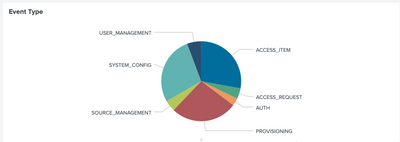
The SailPoint Identity Security Cloud AuditEvent Add-on for Splunk provides a source types with in Splunk®. The above configured source type are used to collect Audit events from Identity Security Cloud. Users can configure this source type to collect events to Splunk® and populate a custom dashboard visualizing different types and details for these events.
- The Dashboard displays data in different visualization format.
- Dashboard data is updated every 5 minutes.
- The time picker is set to last 30 days by default.
- Time window can be modified, and the dashboard results update automatically by clicking “Submit” button.
- The dynamic selectable filters help to get filtered results. Filtration updates the data on the dashboard.
- Each visualization is linked to search.

- Pie chart shows the Error Type. On hover shows the percentage and count for the slice.
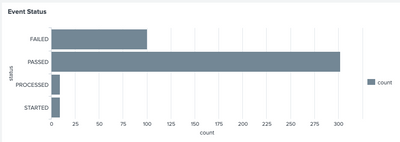
- The bar chart displays the count for event status on top of each column. X-axis displays the count and Y-axis shows the status.
- The bar chart displays the count for type of operations. X-axis shows each operation t and Y-axis shows the count.

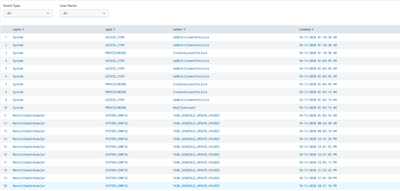
- Table below shows events received from the source type. It consists of paginator and column sorting functionality.
Index Setting:
If index is set to anything other than default, please edit the script "input_module_sailpoint_identity_security_cloud_auditevent.py" and set index=helper.get_output_index() in the below code:
event = helper.new_event(data=data, time=None, host=tenant["url"], index=None, source=helper.get_input_type(), sourcetype=helper.get_sourcetype(), done=True, unbroken=True)
Related Links
- Identity Security Cloud API reference - SailPoint Identity Security Cloud API
- Identity Security Cloud API authentication guide - Best Practices IdentityNow REST API Authentication
- Identity Security Cloud Personal Access Tokens - Best Practice: Using Personal Access Tokens in Identity Security Cloud
- Splunk 'Splexicon' terminology guide - Splexicon - Splunk Documentation
- Splunk 'Search' guide - Get started with Search - Splunk Documentation
Version 2 Updates - 12/2/2019
Version 2.0.0 of the SailPoint Identity Security Cloud AuditEvent Add-on for Splunk contains several enhancements:
- Utilizes the new Identity Security Cloud /search API's
- Limited look-back (24 hours) to improve performance
- 60-minute staggered ingestion of AuditEvents
- Modified format of AuditEvent data
- Additional authentication configuration fields
1/15/2020
Version 2.0.1+ of the SailPoint Identity Security Cloud AuditEvent Add-on for Splunk contains a change to the the authentication flow:
- Utilizes Personal Access Token information
10/14/2020
Version 2.0.3 of the SailPoint Identity Security Cloud AuditEvent Add-on for Splunk contains a custom dashboard visualizing different types and details for these events.
01/08/2021
Version 2.0.4
04/12/2021
Version 2.0.5: Bug fix related to proxy settings.
04/27/2021
Version 2.0.6: Fixed reported cloud-vetting issues.
10/06/2021
Version 2.0.7: Compatible with JQuery v3.5 and above.
11/04/2021
Version 2.0.8: Added missing .xml files for input and configuration.
03/24/2021
Version 2.0.9: Updated /search Beta API to V3 API
08/17/2023
Version 2.0.10: Updated the add-on to be fully compatible with Python 3.7 and Splunk Cloud.
11/09/2023
Version 2.0.12: Updated the addon to utilize x-www-form-urlencoded and pass the client secret and client id in the request body for OAuth2 authentication.
06/27/2024
Version 2.0.13: Updated the add-on to be fully compatible Splunk Cloud.
08/23/2024
Version 2.0.14: Minor bug fix.
10/25/2024
Version 2.0.15:
-Minor bug fix.
-Add-on updated to be compatible with Splunk Cloud.
02/07/2025
Version 2.0.16:
-Add-on updated to be compatible with Splunk Cloud.
09/08/2025
Version 2.0.17:
-Add-on updated to be compatible with Splunk Cloud.
-App build using latest version of Add-on Builder version 4.5.0.
08/02/2026
Version 3.0.0:
If you are upgrading from a previous version of this Add-on, you MUST reconfigure your setup.
Because this update introduces robust Multi-Tenant Support and shifts to the modern UCC framework, the underlying configuration structure has fundamentally changed.
-
Your previous credentials and data inputs will not automatically carry over.
-
You must define your tenant(s) in the new Configuration > Account tab.
-
You must recreate your Data Inputs to explicitly map to the new Global Account setting.
What's New in This Version?
-
Multi-Tenant Support: Manage multiple ISC environments natively within a single Add-on.
-
Modernized UCC Framework: Rebuilt on Splunk's Unified Configuration Console for robust performance and compatibility with Python 3.9+ (Splunk Enterprise 10.x & Splunk Cloud).
-
Updated Dashboards: Upgraded visual analytics for deeper insights into your audit events.
-
Streamlined Setup: A clean, tab-based UI for configuring accounts and data inputs.
-
Dedicated Vendor Integration: Support for PATs generated explicitly for Splunk via the ISC Vendor Integration menu.